
Wireless
AirPods Not Connecting To Mac? Here’s The Real Fix.
5 min read

Your AirPods are not connecting to your Mac and you don’t know what to do.
Your AirPods are designed to quickly pair to the devices linked to your iCloud account, but this process doesn’t always go according to plan.
In this article, I’ll explain why your AirPods won’t connect to your Mac and help you solve the problem for good.
Before we dive into the troubleshooting steps, it’s important to know that AirPods will only work with Macs that are running the most recent version of the Mac computer operating system — macOS Sierra. If you haven’t updated your Mac software in awhile, that may be the reason why your AirPods won’t connect to your Mac. To check what software is currently running your Mac, or to update your Mac software, click the Apple logo in the upper left-hand corner of your screen and click About This Mac. A pop-up will appear on your screen, telling you which version of macOS is currently running on your Mac. If you need to update your Mac, click Software Update… and update your Mac. 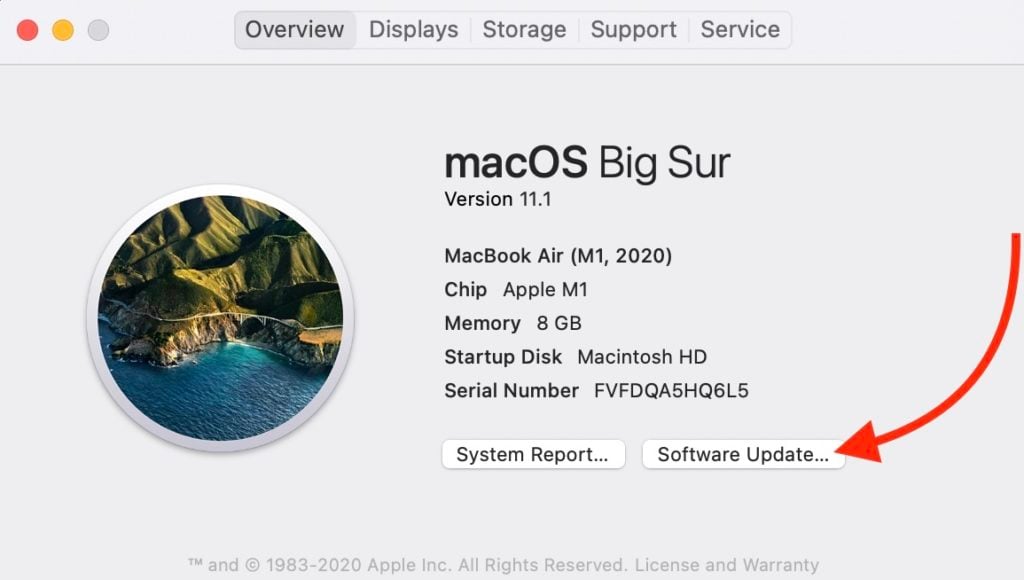 If you’re updated to macOS Sierra, but your AirPods are not connecting to your Mac, follow the steps below to diagnose and fix the problem!
1
Forget Your AirPods As A Bluetooth Device On Mac
If your Mac or AirPods have updated, it may affect the way they connect to other devices. By forgetting AirPods as a device on your Mac altogether, you can start over like new. This gives your AirPods an opportunity to make a new, clean connection to your Mac.
- Click the Apple logo in the upper left-hand corner of the screen.
- Open System Preferences on your Mac.
- Click Bluetooth.
- Click once on your AirPods under Devices in the Bluetooth menu.
- Click the circular “x” button that appears when you scroll over your AirPods.
- Click Remove when the confirmation alert appears on the screen.
- Wait a few minutes, then try to reconnect your AirPods to your Mac.
2
Restart Your Mac
Restarting your Mac gives it a chance to have a fresh start, which can sometimes resolve minor technical issues or software glitches.
- Click on the Apple icon in the upper left-hand corner of your Mac’s screen.
- Click Restart in the drop-down menu.
- Click Restart when the confirmation alert appears in the center of your Mac’s display.
- Your Mac will restart itself. This process can take a few minutes so be patient!
3
Manually Connect Your AirPods To Your Mac
Fortunately, when your AirPods are not connecting to your Mac automatically, you can still pair them manually via Bluetooth.
- Make sure you’ve turned on Bluetooth on your Mac.
- Open your AirPods charging case.
- Open System Preferences.
- Click Bluetooth.
- Under your list of devices, double-click on your AirPods.
4
Select AirPods As The Output Device
Sometimes, your Mac may be connected to a different output device, which may make it appear that your AirPods are not connecting to your Mac. The fix may be as simple as clicking on your AirPods under the list of your Mac’s output devices.
- Make sure your AirPods are in range of your Mac and that the charging case is open. If you have AirPods Max, make sure they are outside the Smart Case.
- Make sure you’ve turned on Bluetooth on your Mac.
- Click the Apple logo in the upper left-hand corner of the screen.
- Open System Preferences.
- Click Sound.
- Click on the Output tab.
- Select your AirPods.
5
Put Your AirPods Into Bluetooth Pairing Mode
If your iPhone isn’t logged into your iCloud account, you’ll have to put your AirPods into Bluetooth pairing mode.
- Put your AirPods into the Charging Case.
- Keep the lid of your Charging Case open.
- Press and hold the setup button on the back of the Charging Case.
- When the status light begins to flash white, your AirPods are in Bluetooth pairing mode.
6
Charge Your AirPods
Charging your AirPods ensures that they will have enough battery life to function properly. AirPods are charged using the Charging Case.
- Put your AirPods in the Charging Case.
- When your AirPods are in the Charging Case, the Status light will indicate the amount of charge your AirPods have.
- The Status light will turn green when your AirPods are fully charged.
7
Charge The AirPods Charging Case
It may be a mouthful, but the Charging Case needs to be charged in order to charge your AirPods.
- Plug a Lightning cable into the Lightning connector on your Charging Case.
- Plug the other end of the Lightning cable into a USB port or wall charger.
- It may take a few hours to fully charge your Charging Case.
8
Repair Your AirPods With Apple
At this point, Apple is the only place in town that can repair AirPods. So, if your AirPods are broken, you have only one question to ask yourself: Do I visit the Genius Bar at an Apple Store to repair my AirPods or do I use Apple’s mail-in repair service?
How To Repair Your AirPods At The Genius Bar In An Apple Store
- Visit Apple’s website to make an appointment at the Genius Bar at your local Apple Store.
- Make sure to check in at the Genius Bar when you arrive.
How To Repair Your AirPods Using Apple’s Mail-In Repair Service
- Visit Apple’s online support website to set up a mail-in repair or get phone support.
9
Reset Your AirPods
It may seem simple, but resetting your AirPods may fix minor software bugs such as connectivity issues or a quickly draining battery. Like resetting an iPhone, resetting your AirPods gives them a “fresh start.”
- Press and hold the setup button on the back of your Charging Case.
- Release the setup button when status light flashes amber a few times, then flashes white.
- Your AirPods have been reset.
- Connect your AirPods to your device, just like you did when you set them up the first time.
10
Turn On Bluetooth On Your Mac
Bluetooth is the technology that allows your Mac to wirelessly connect to other devices like headphones and keyboards. Bluetooth needs to be turned on before you can connect your Mac to Bluetooth devices.
- Click the Apple logo in the upper left-hand corner of the screen.
- Click System Preferences.
- Click Bluetooth.
- Click Turn On Bluetooth.
- When Bluetooth is on, your Mac will say Bluetooth: On.
Your AirPods are connected to your Mac and you can start listening to your favorite songs, podcasts, and audiobooks again.
Now that you know what to do when AirPods are not connecting to a Mac, make sure to share this article with your family and friends on social media.


Beyond fixing
If repairs aren’t worth it, here’s how to pick what’s next.
Compare 328 phones across every carrier.