
Wireless
My iPhone 5 Says No Service! Here’s The Real Fix.
5 min read

You’re not getting service on your iPhone 5 and you don’t know why.No matter what you do, you still have no bars.In this article, I’ll explain how to fix the problem when your iPhone 5 says No Service.You’ve fixed the problem with your iPhone and it has service again.You now know exactly what to do when your iPhone 5 says No Service.
The SIM card is the piece of technology that connects your iPhone to your wireless carrier’s network. When your SIM card isn’t working properly, or if it’s out of place, it can cause service issues on your iPhone.
The tray which holds the SIM card can be found on the right edge on your iPhone below the power button. To open the tray, press into the small hole using a SIM card ejector tool or a straightened out paperclip.
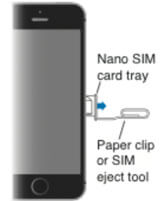
Push the tray back into the slot to reseat your SIM card. If it still says No Service on your iPhone 5, follow the step-by-step guide below!
1
Update Your iPhone Software In Settings
Apple puts out new software updates to improve efficiency, fix bugs, and introduce new features. Updating iOS can fix problems with your iPhone’s software.
- Open the Settings app.
- Tap General.
- Tap Software Update.
- Tap Download and Install or Install Now.
- Enter your passcode if prompted.
- The update will begin once it has been verified.
- The update is complete after your iPhone restarts.
2
Reset Network Settings
When your iPhone connects to a Wi-Fi or Bluetooth device for the first time, it saves information about how to connect to that network or device. If something changes with that process, it may cause connectivity issues.
Deep software problems, especially with network settings, can be difficult to track down. Rather than trying to track an issue down, we’re going to reset all network settings and give your iPhone a fresh start.
- Open the Settings app.
- Tap General.
- Scroll down and tap Transfer Or Reset iPhone.
- Tap Reset.
- Tap Reset Network Settings.
- Enter your passcode if prompted.
- Your iPhone will shut down, reset, and turn itself on again when the reset is complete.
3
Restart Your iPhone
Restarting your iPhone can sometimes fix minor software glitches and errors.
- Press and hold the power button (iPhones without Face ID) or the side button and either volume button (iPhones with Face ID) on your iPhone until the slide to power off slider appears on the display.
- Swipe the red power icon from left to right to turn off your iPhone.
- Wait about 30 seconds, then press and hold the power button (iPhones without Face ID) or the side button (iPhones with Face ID) again until the Apple logo appears in the center of the display.
Turn Off Your iPhone In The Settings App (Option 1)
- Open the Settings app on your iPhone.
- Tap General.
- Scroll to the bottom and tap Shut Down.
- Swipe the red power icon from left to right.
- Plug your iPhone into a power source using a Lightning cable to turn it on again.
Turn Off Your iPhone Using AssistiveTouch
- Watch our YouTube video or follow the steps below!
- Open the Settings app.
- Tap General.
- Tap Accessibility.
- Tap AssistiveTouch.
- Turn on the switch next to AssistiveTouch.
- Tap the AssistiveTouch button when it appears on the display.
- Tap Device.
- Tap More.
- Tap Restart.
- Tap Restart again when the confirmation alert appears.
4
Get A New Cell Phone Plan
Getting a new cell phone plan may be the only solution when you’re having issues getting cell service on your phone. If your phone consistently has says “Searching” or has no service, you may want to consider switching carriers.
- Go to the UpPhone cell phone plan comparison tool.
- Use the sliders to select how many minutes, messages, and gigabytes of data that you need.
- Use the menus to select the features, pricing structure, and contract type that you want.
- Click View Plan when you’ve found one that you’re interested in!
5
Contact Your Wireless Carrier
Sometimes when your iPhone experiences issues related to your cellular network (no or poor service, calls going straight to voicemail), the problem is stemming from the cellular network, not the iPhone itself.
Below are the support numbers of major wireless carriers to contact if you’re experiencing problems.
- Verizon: 1-(800)-922-0204
- Sprint: 1-(888)-211-4727
- AT&T: 1-(800)-331-0500
- T-Mobile: 1-(877)-746-0909
6
Update Carrier Settings
The UpPhone recommend that you update carrier settings immediately after they become available because outdated settings may lead to connectivity issues between your iPhone and your wireless carrier’s network.
Some potential issues include having poor service or your iPhone going straight to voicemail anytime you receive a call.
- Make sure that your iPhone is connected to a Wi-Fi network, or that Cellular Data is turned on.
- Open the Settings app.
- Make Tap General.
- Tap About.
- After a few seconds, if a carrier settings update is available, you’ll see a pop-up on the screen of your iPhone which says, “New settings are available. Would you like to update them now?”
- Tap Update.
7
Repair Your iPhone With Apple
Apple repairs iPhones at the Genius Bar in Apple Stores and through their online mail-in repair service. Apple repairs are high-quality, but out-of-warranty repairs can be much more expensive than third-party solutions. If you’re looking to save some money you’re not covered by Apple’s warranty, you may want to check out our other recommendations.
How To Repair Your iPhone With Apple’s Mail-In Service
- Visit Apple’s support website to begin the online mail-in repair process.
- Alternatively, call 1-800-MY-APPLE (1-800-692-7753) to set up a repair.
How To Repair Your iPhone At The Genius Bar Inside Your Local Apple Store
- Visit Apple’s website to make a Genius Bar appointment before you go into the store. Apple Stores are extremely busy, and if you don’t have an appointment, you may have to wait for hours or end up being turned away. (Editor’s note: I’m a former Apple tech and we’re not exaggerating — please, do yourself a favor and make an appointment first!)
- When you arrive, go to the Genius Bar to check in for your appointment.
- Genius Bar appointments always include free diagnosis. If you’re under warranty, many repairs can be done on the spot, but it all depends upon which parts are in stock. If you’re not under warranty, the Genius will give you a quote for the cost of a repair.


Beyond fixing
If repairs aren’t worth it, here’s how to pick what’s next.
Compare 328 phones across every carrier.