Restarting your computer will briefly shut your device down, then automatically turn it back on a few seconds later. This is a quick and easy step that can often be a catch all for a number of software malfunctions.
Why Should I Restart My Computer?
Computers are complex machines. Sometimes they get overwhelmed or experience a minor malfunction. Luckily, a quick restart can get your computer up and running normally in just a few minutes.
How Do I Restart My Computer?

Previous
Next
How To Restart Your Computer
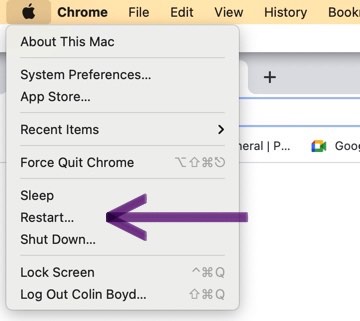
- If you have a Mac, click the Apple icon in the top left corner of your display.
- In the dropdown menu that appears, select Restart.
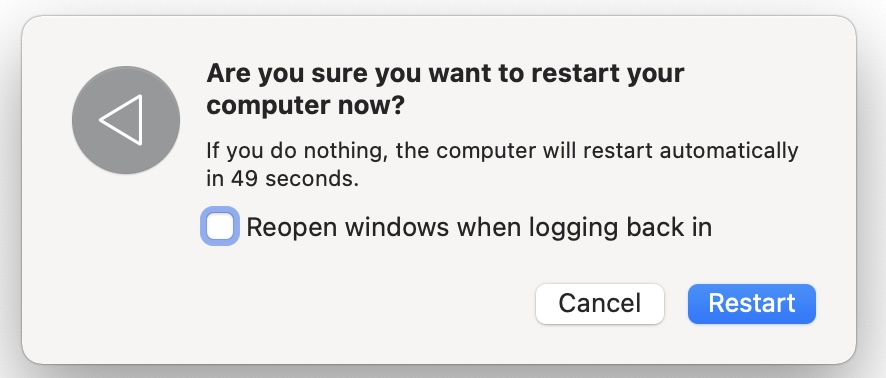
- When your computer asks you to confirm this action, click Restart again.
- Your Mac should turn off and back on automatically.
- If you use a Windows computer, press Ctrl + Alt + Delete on your keyboard.
- Select the Power icon that appears in the bottom right of your display.
- Click Restart.
- If your computer asked you to confirm the restart, click Restart again.
- Your computer should power down and turn back on automatically after you click Restart.
Applies To: MacBook,MacBook Pro,MacBook Air,iMac,Mac Pro,Mac Mini,Windows,PC,HP,Lenovo,Acer
Pro Tips
- Make sure you save any unfinished work before restarting your computer. Otherwise, it might get deleted accidentally when your device powers down.
- It can take a few minutes for a computer to restart, especially if it's already malfunctioning. Don't panic if your computer doesn't boot back up automatically.
Subscribe
0 Comments